Google Veo 3.1 AI Video Generator: Up to 4K with Audio | Muvi
Models
Google Veo 3.1 AI Video Generator
Generate photorealistic AI video up to 4K with native audio using Google Veo 3.1 on Muvi. Text-to-video, image-to-video and synchronized sound effects.
Photorealistic Video Generation with Google Veo 3.1 & Veo 3.1 Fast
Google Veo 3.1 represents Google DeepMind's flagship foundation model for generative video. Built on advanced generative diffusion and transformer architectures, Veo 3.1 generates video at 720p, 1080p or 4K with photographic realism, natural physical interactions, and synchronized native audio synthesis. Creators and studio teams can generate photorealistic scenes directly online inside Muvi Studio without needing local GPU infrastructure.
From cinematic commercial reels to lifelike human portraits and atmospheric landscapes, Veo 3.1 interprets camera movement directives, nuanced lighting setups, and acoustic sound environments with exceptional precision.
Launch Google Veo 3.1 in Muvi Studio
Experience Veo 3.1's dual generation pathways directly in your browser:
Image-to-Video Animation: Animate static portrait photography, architectural concepts, or keyframes via Veo 3.1 image-to-video.
Native Synchronized Audio: Direct camera and acoustic elements together—Veo synthesizes synchronized ambient noise, environmental sound effects, and character dialogue in the very same generation pass.
Veo 3.1 Technical Specifications & Architecture
Feature / Metric
Google Veo 3.1 Architecture
Production Impact
Developer / Lab
Google DeepMind
Generative media research lab
Native Audio Synthesis
Integrated audio (ambient sound, dialogue, foley)
Eliminates external audio sync pipelines for fast drafts
Output Resolution
720p HD, 1080p Full HD, and up to 4K Ultra HD
Broadcast, commercial social, and ultra-high-definition cinema delivery
Aspect Ratios
16:9 cinematic widescreen, 9:16 vertical
Ideal for YouTube cinema, TikTok, and Instagram Reels
Complementary Fast Mode
Google Veo 3.1 Fast
Lower-cost 720p/1080p/4K drafts in the same 4–8 s range
Realistic human skin, complex lighting, refractive glass
Muvi Access Mode
Browser-based, cloud render, no install required
Available on every plan; each clip spends coins (see pricing)
Production Prompt Recipes for Google Veo 3.1
These prompt recipes showcase Veo 3.1's native visual and acoustic capabilities:
Recipe 1: Cinematic Dramatic Scene (Text-to-Video with Native Audio)
Cinematic medium shot of an espresso barista in a sun-drenched European cafe at sunrise, golden volumetric light streaming through dust motes. The barista pours steamed milk into a ceramic cup creating intricate latte art, 50mm f/1.4 lens, 24fps motion blur. Audio: the authentic hiss of espresso steam, followed by the clink of a ceramic cup on a wooden counter and quiet early morning street birds outside.
Use the uploaded modern electric sports car as the starting composition. Dynamic low-angle tracking shot along a winding coastal highway at blue hour, headlights illuminating the wet asphalt with realistic specular reflections. The camera dollies smoothly beside the rear wheel before swooping upward to reveal the ocean horizon. Audio: low resonant hum of the electric motor, rhythmic tire friction on damp road, and distant ocean surf crashing.
Recipe 3: Stylized Atmospheric Fantasy (Text-to-Video)
Stylized mystical library nestled inside a giant glowing crystal cave, glowing bioluminescent moths fluttering around floating leather-bound spellbooks. Slow upward crane shot drifting past towering crystalline arches reflecting prismatic pastel refractions. Audio: gentle crystalline harmonic chimes resonating in the cavern, soft paper rustle of opening books, and an ambient ethereal drone.
Head-to-Head Comparison: Google Veo 3.1 vs Competitors
Metric / Capability
Google Veo 3.1
ByteDance Seedance 2.0
Kuaishou Kling 3.0
Resolution
720p, 1080p Full HD, up to 4K
480p, 720p, 1080p
1080p (Kling O3 Pro)
Audio Generation
Native synchronized sound & dialogue
Audio supported
Audio supported
Maximum Duration
8s single clip
15s single clip
15s per generation
Camera Kinematics
Directorial terminology adherence
Smooth orbital & linear tracking
Dynamic acrobatic & stylized motion
Access on Muvi
Web access on every plan
2.0 Fast on every plan; 2.0 on Pro
Web access on every plan
When extended single-take continuity or multi-reference character consistency across 15 seconds is paramount, deploy our Seedance 2.0 AI video generator. When crafting anime battles, graphic novel vignettes, or stylized motion graphics, switch to the Kling 3.0 AI video generator.
Frequently Asked Questions About Google Veo 3.1
How can I use Google Veo 3.1 online?+
Muvi Studio offers direct browser access to Google Veo 3.1 without waitlists or third-party API configurations. New accounts get free starter coins, and each Veo 3.1 or Veo 3.1 Fast clip spends coins based on its length and resolution; the Muvi pricing page lists current plans and coin costs.
Does Google Veo 3.1 generate audio with the video?+
Yes. Unlike most legacy video models that produce silent video files, Google Veo 3.1 features native audio generation. By including acoustic descriptions in your prompt—such as footstep gravel crunches, dialogue, or atmospheric ambient cues—Veo synthesizes synchronized sound design in tandem with the visual render.
Can I animate still images using Google Veo 3.1?+
Yes. With the Veo 3.1 image-to-video mode in Muvi Studio, you can upload any high-resolution image, concept rendering, or product shot as the starting frame. Veo preserves initial framing and subject features while bringing the camera and environment into natural motion.
How does Google Veo 3.1 compare to OpenAI Sora 2 and Kling 3.0?+
Veo 3.1 stands out as an active, commercial production engine offering output up to 4K and native audio synthesis. Sora 2 is OpenAI's model and is not available on Muvi, while Kling 3.0 on Muvi excels in stylized aesthetics; Veo 3.1 delivers production-ready commercial photorealism and sound in a unified browser interface.
Complementary Models & Creative Ecosystem
Combine Veo 3.1 with Muvi's full creative engine suite:
Pair your Veo 3.1 shots with long-take continuity using Seedance 2.0.
Mix in high-energy stylized action scenes generated with Kling 3.0.
These clips and their original English prompt labels were already included in this page’s gallery. They are retained for viewing, but the available source record does not verify the exact model version, generation settings or whether the listed prompt produced each clip. They are separate from the cup exercise above; do not read them as tested results of that prompt.
Existing gallery · attribution unverified
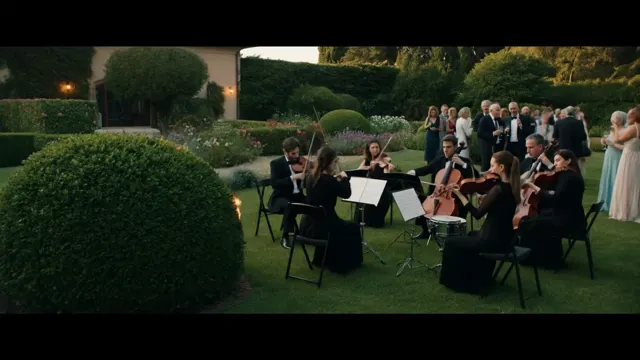
Garden Fire Orchestra
“ASMR sound, documentary analogue shot, orchestra 6 people band of strings, wind percussion, dressed in suits. They are playing classical music in the summer garden during reception in an Italian villa. Suddenly fires starts on the bush and spreads around, but they keep on playing”
Existing gallery · attribution unverified
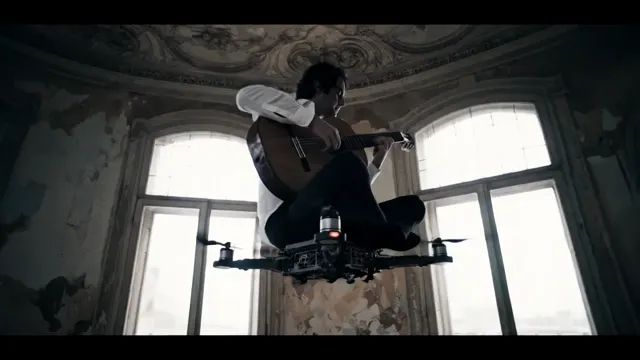
Drone Guitar, Spanish Apartment
“Playing the Spanish guitar on top of a moving flying drone inside a weathered Spanish apartment, cold light coming through the windows. Sound of the drone's propellers”
Existing gallery · attribution unverified
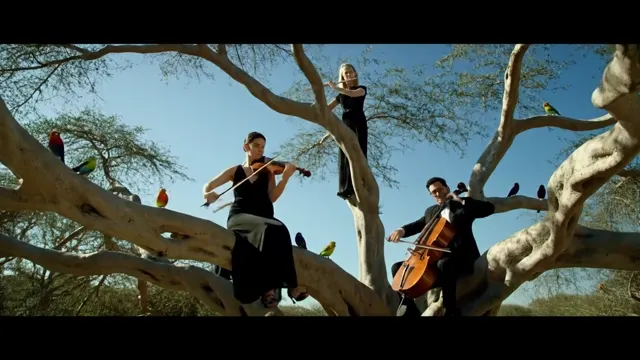
Argan Tree Orchestra
“An orchestra perched on an Argan tree's branches playing music. The musicians are placed randomly on the tree amongst birds, some of them standing up on the branch others sitting on the branch.”
Existing gallery · attribution unverified
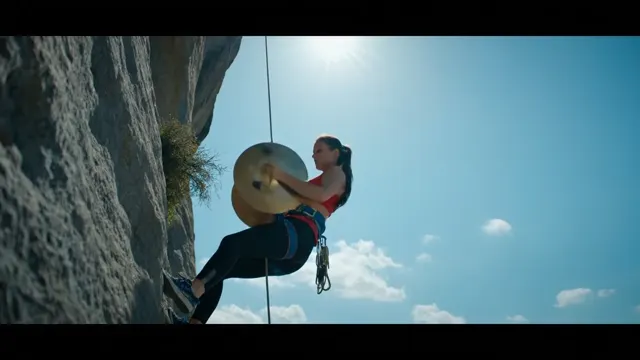
Cliffside Cymbal Player
“A woman plays the cymbals while hanging off the side of a cliff”
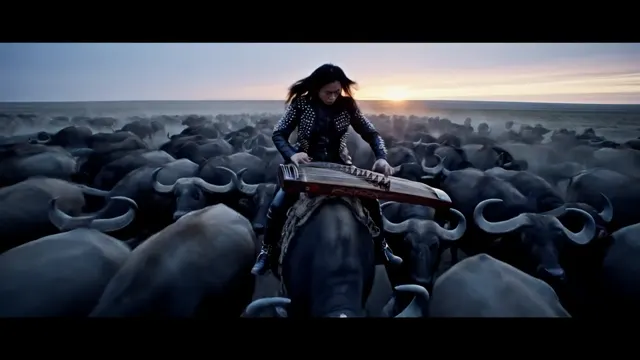
Existing gallery · attribution unverified
Guzheng Rider, Buffalo Stampede
“A long-haired person playing guzheng, clad in black leather and spikes, standing with perfect balance atop a massive buffalo as it marches in slow motion across the open savannah. All around him, a thunderous herd of buffalo moves in unison. Real cinematic footage. No added music only the sound of his guzheng and the buffaloes.”
Google Veo 3.1 AI Video Generator
Generate photorealistic AI video up to 4K with native audio using Google Veo 3.1 on Muvi. Text-to-video, image-to-video and synchronized sound effects.